Monitor juries are most often characterized by jurors who are scoring applicants remotely from their own computers. Some monitor juries meet via a conference/video call during the jury while others have jurors score independently without interaction with other jurors.
The other type of jury used on ZAPP, the projected jury, is typically a jury where artwork images are displayed on a large wall or projection screens. When using the projected scorecard, jurors may see thumbnails of all the images or just one, depending on the administrator’s settings.
The type of jury and the scorecard jurors see is determined by the event administrator.
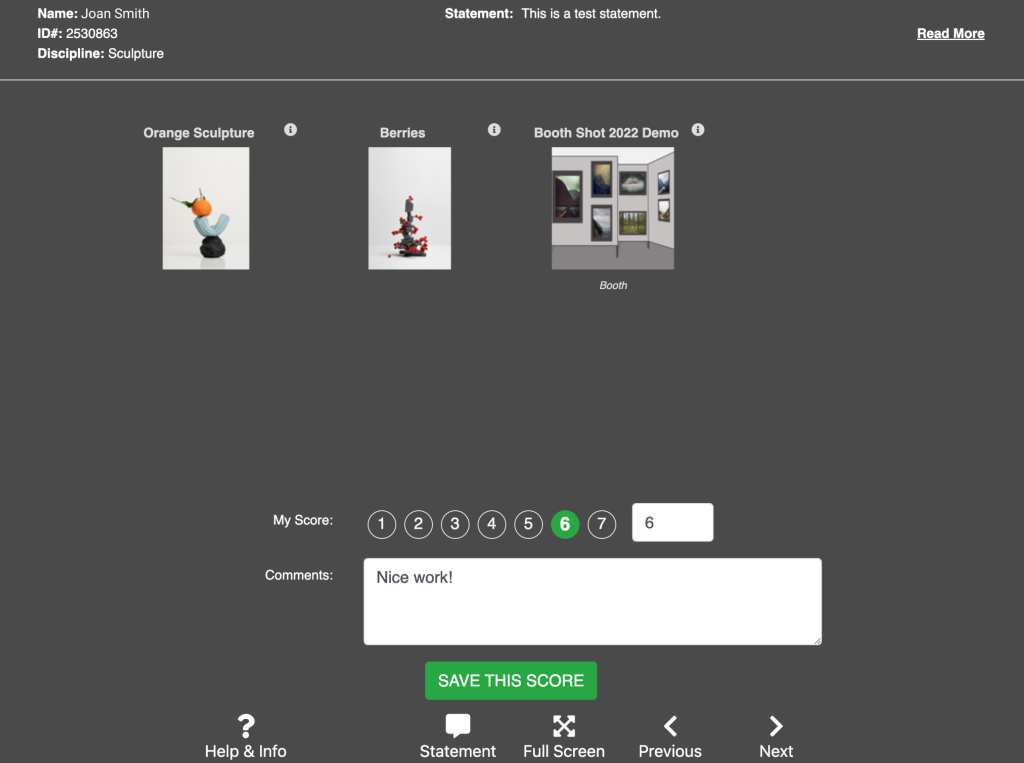
The monitor scorecard will look like the image below with thumbnails of the artwork displayed against a dark gray background. You’ll know you’re on the scorecard if you have a place to enter a score and comment.
Note: If your scorecard does not look like the image below, the event administrator may have set up the jury to use the projected jury scorecard. To view information about projected juries, see our Scoring Submissions in a Projected Jury page.
When scoring in a monitor jury, you will see the Review button on your landing page. Click this button to open a window where you can see an overview of the application and larger versions of each image. Scores cannot be submitted while in the review mode. We recommend reviewing images before scoring to ensure you have a chance to acclimate to the platform and view all submissions.
TIP: You can zoom in and out on images to view them in greater detail. To zoom in or out of the image:
- Scroll up or down on your mouse.
- Click and drag the slider at the top of the window.
- Press the up or down arrows on your keyboard.
Click and drag on the image to move around once zoomed in.
Once you have finished reviewing applications, it’s time to score artists. Follow the step-by-step below to submit scores:
4. Continue scoring for each application or medium you are assigned to.
5. After scoring is complete, return to the landing page and click Score Remaining Applicants to ensure all applicants have been scored.
Once you click Save This Score on any applicant’s scorecard, the score is automatically saved in ZAPP and accessible to the event administrator. Though scores are immediately available, most jurors will still want to review their scores and comments before letting administrators know they are done scoring.
Use the sort and filter tools on the landing page to view submitted scores from highest to lowest, sort scores by medium category, and review your comments. Click Show Thumbnails to aid in your review.
Click Review under the Action column to update your scores and comments at any time while the jury is in progress. You can also download your scores into a spreadsheet and review them in that format or use as a reference in case the administrator has any questions about a submitted score or comment.
Click here to learn more about the juror landing page.
For the best experience, we recommend accessing the scorecard on a desktop or laptop computer. ZAPP works best on the two most recent versions of operating systems and major web browsers. ZAPP also utilizes the sRGB colorspace for all artist images, and we recommend that all monitors are calibrated for an sRGB colorspace to display the artwork as accurately as possible.
Many variables—such as ambient light, throw distance, and hardware limitations—are directly related to calibration and can cause fluctuations from monitor to monitor. ZAPP cannot guarantee perfect calibration due to outside variables that are beyond our control. When possible, jurors should score on the same type of device for the duration of scoring to maintain maximum consistency.
Questions about juries? Email us at zapphelp@wearecreativewest.org. If you have questions about a specific event’s process, please contact the show administrator.